TOTP
Principle
- TOTP: time-based one-time password
- Generated from a personal, secret key
- You need some software to generate the TOTP from your secret key.
Remember that verdi.ens.fr is the bastion host of the department of
geosciences at ENS. See Remote shell through a proxy
jump. Access to verdi.ens.fr requires a TOTP (since
March 2026). That is, when you connect to verdi, you need to provide a
TOTP in addition to the passphrase of your SSH key or the password of
your account on verdi. Ask IT people of the department of geosciences
for your personal secret key to generate a TOTP.
TOTP generator
On a computer: KeepassXC (recommended by CNRS). On Ubuntu or Linux Mint, you can install it with:
apt install keepassxc
On a smartphone, open source:
- Aegis (Android)
- FreeOTP (Android / iOS)
- FreeOTP+ (Android)
You may give to the TOTP generator your secret key either directly by typing it, or through a QR code.
Entering the TOTP less often
If you are tired of entering a verification code every time you have to go through verdi, the following explains three alternative ways to avoid it.
With multiplexing
The idea here is to re-use an existing connection to verdi, so you create a connection to verdi only once per session on your home computer. Re-using an SSH connection is called SSH multiplexing.
Create an empty sub-directory in ~/.ssh:
mkdir ~/.ssh/sockets
chmod 700 ~/.ssh/sockets
Add the following entries to ~/.ssh/config:
Host verdi.ens.fr
     User your-ID-on-verdi
     ControlMaster auto
     ControlPath ~/.ssh/sockets/%r@%h-%p
     ControlPersist 3600

Host jean-zay
     HostName jean-zay.idris.fr
     User your-ID-on-jean-zay
     ProxyJump verdi.ens.fr

Host my-ENS-desktop-computer
     HostName my-ENS-desktop-computer.ens.fr
     User your-ID-on-ENS-desktop-computer
     ProxyJump verdi.ens.fr
The User line in the entry for verdi is useful only if your login ID on verdi is different from your ID on your home computer. The ControlPersist line is a time in seconds during which the connection to verdi remains available. You can adjust this time if you want. The User line in the entry for my-ENS-desktop-computer is useful only if your login ID on your ENS desktop computer is different from your ID on verdi. The entry for jean-zay assumes that you have declared to IDRIS that you connect to jean-zay from verdi.
Then:
(computer at home) $ ssh my-ENS-desktop-computer
or :
(computer at home) $ ssh jean-zay
automatically go through verdi, and ask for the TOTP only for the first connection, or after 3600 s (the time specified in ControlPersist). This also works automatically for all commands using ssh: scp, sftp, rsync, sshfs... For example:
(computer at home) $ sftp jean-zay
It also works automatically for remote access with a text editor. The first command can be ssh or any command using ssh, and all subsequent commands using ssh will work without asking for a TOTP.
This multiplexing solution is simpler than the solution using sshpass, and safer against piracy, but I do not know whether it incurs a penalty in speed of transmission.
With sshpass
Create a personal GPG key. If you are on Ubuntu or Linux Mint, then a
simple way to do this is with Seahorse. If you
already have a GPG key that you have created on another machine, you
can import it in Seahorse: import the files which have names ending
with public.asc and private.asc. Check that you have selected
ultimate trust for your GPG key in Seahorse. This is done once and for
all.
You will need to install additional software: pass, pass-otp and sshpass. On Ubuntu or Linux Mint, you can install them with:
apt install pass-otp sshpass
Initialize pass with the key ID of your GPG key (the key ID of your GPG key is neither its password nor your mail address nor your name, it is well written as "key ID" in Seahorse):
pass init keyID(replace keyID in the command above by the value of your key ID). Store your personal secret key for verdi TOTP in a file, encrypted with your GPG key:
pass otp insert totp_verdi
totp_verdi in the above command is an arbitrary name, that you can
choose to identify the secret key for verdi TOTP. The command above
will prompt you for the secret key. Enter the string provided by
Pierpaolo Dubernet (in the IT service of the department), it begins
with otpauth://. This is done once and for all.
Declare a "proxy command" to reach your desktop computer in the
departement, in your SSH configuration file, ~/.ssh/config:
Host my-ENS-desktop-computer
     HostName my-ENS-desktop-computer.ens.fr
     ProxyCommand sshpass -p `pass otp totp_verdi` -P "Verification code:" ssh verdi.ens.fr -W %h:%p
(replace my-ENS-desktop-computer above by the name of your desktop
computer at ENS). If you had already set up a proxy jump to reach your
desktop computer with a ProxyJump line in ~/.ssh/config, remove that
line, since it is replaced by the ProxyCommand line. This is done once
and for all.
Then:
(computer at home) $ ssh my-ENS-desktop-computer
automatically goes through verdi, automatically providing the TOTP (replace my-ENS-desktop-computer above by the name of your desktop computer at ENS). This also works automatically for all commands using ssh: scp, sftp, rsync, sshfs... It also works automatically for remote access with a text editor. You enter only the SSH passphrase, once per session.
Here is another example, where you go through verdi not to access a
desktop computer at ENS but to access the machine jean-zay at
IDRIS. We assume here that you have declared to IDRIS that your
connection machine is verdi. Here is the entry that you should add in
~/.ssh/config:
Host jean-zay
     HostName jean-zay.idris.fr
     User your-ID-on-jean-zay
     ProxyCommand sshpass -p `pass otp totp_verdi` -P "Verification code:" ssh your-ID-on-verdi@verdi.ens.fr -l %r -W %h:%p
(replace your-ID-on-jean-zay and your-ID-on-verdi).
Then:
(computer at home) $ ssh jean-zay
automatically goes through verdi.
Here is a schematic of what you have set up, if you are interested:
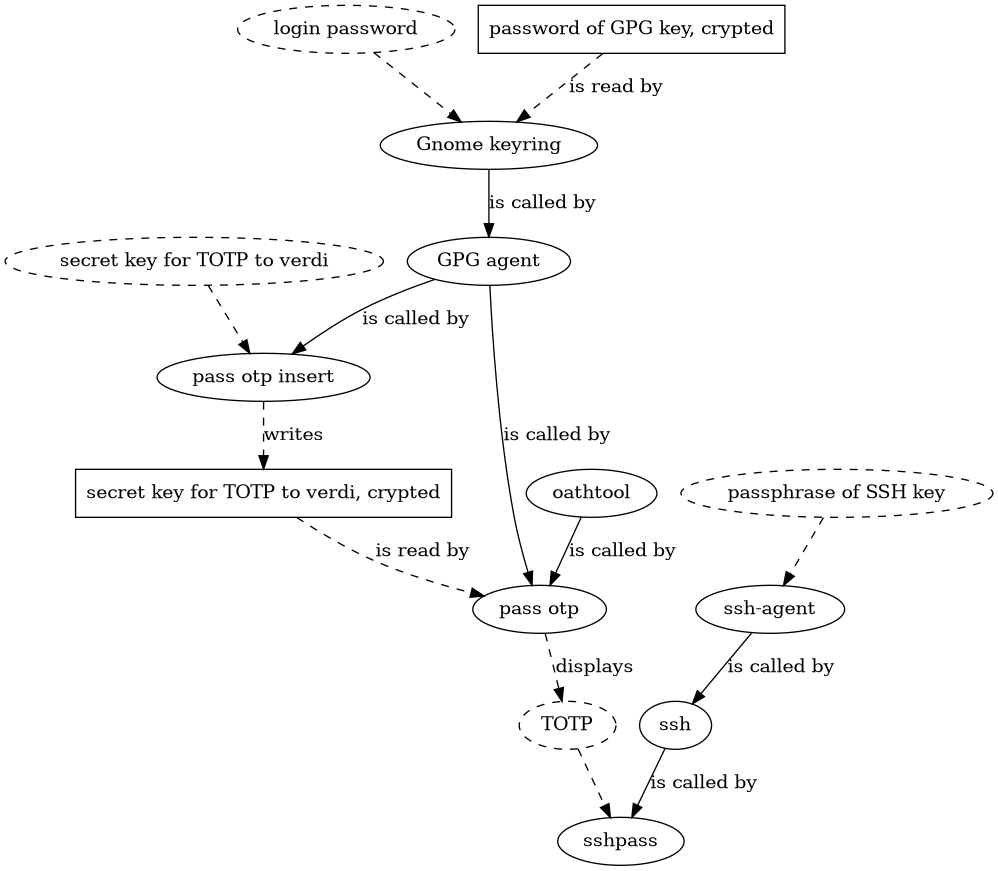
The ovals in dashed lines refer to character strings. The rectangles are files. The ovals in solid lines refer to processes. The password of your GPG key is crypted once and for all by Gnome Keyring with your login password. You can choose to do the same with your SSH passphrase if you want. The figure above assumes that you have not chosen to store your SSH passphrase crypted with GPG. Then you only need to enter your login password and your passphrase once per session on your computer.
With SSHFS
Mount with SSHFS the directory you need from your desktop computer at ENS .