Doing more with SSH
Transmitting graphics
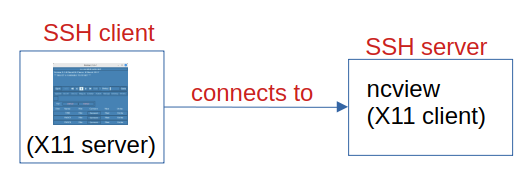
To allow a remote graphical command, add the option -X to the ssh
command:
(personal computer) $ ssh -X guez@spirit.ipsl.fr:
(spirit) $ ncview my_file.nc
Or add the line:
ForwardX11 yes
in the file ~/.ssh/config on your personal computer.
Communication between Jupyter and browser
Jupyter communicates with a browser through a computer port.

Jupyter on spirit frontal node
- You want to run Jupyter on spirit. You do not need a lot of time (≤ ½ h) nor a lot of main memory (≲ 1 GiB) (but maybe you need to access data files which are on spirit).
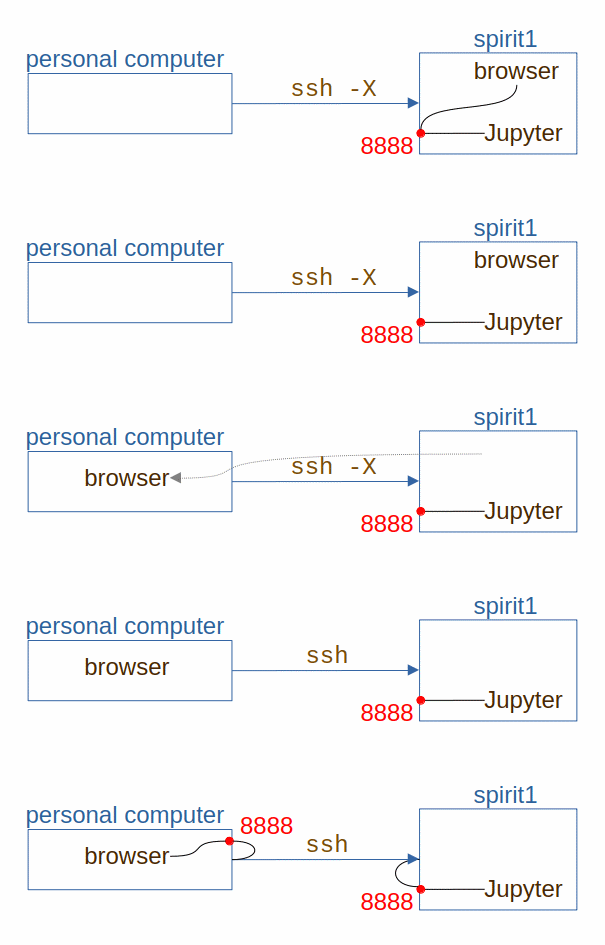
- Running a browser (Firefox) on spirit is not convenient: very slow (the whole graphical window of Firefox is transmitted through SSH).
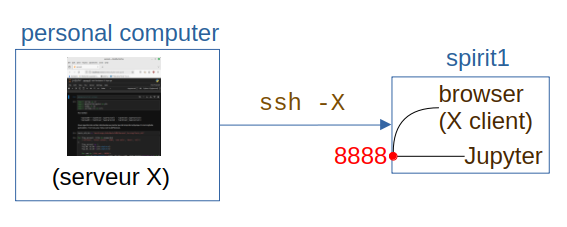
- JupyterHub on spirit is the most convenient way if you are connecting from a machine in the IPSL network or if you have the IPSL VPN on your machine.
Jupyter on spirit frontal node from outside IPSL
(spirit1) $ jupyter-notebook ---no-browser
(personal computer) $ ssh -N -L 8888:localhost:8888 guez@spirit1.ipsl.fr
The -L option is the magic option which enables "local
port-forwarding".
Jupyter on a compute node of spirit
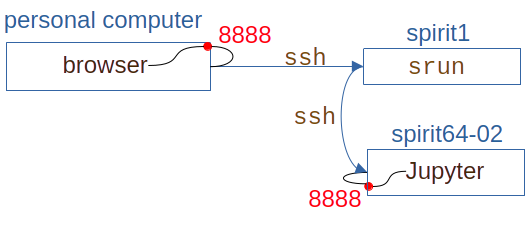
(spirit1) $ srun --pty --time 1:00:00 --mem 1G bash
(spirit64-02) $ jupyter-notebook --no-browser --ip=0.0.0.0
(personal computer) $ ssh -N -L 8888:spirit64-02:8888  guez@spirit1.ipsl.fr
Note the option --ip of jupyter-notebook and the -L option of ssh
which enables "local port-forwarding".
Communication with web server through a proxy
Access a web site as if from elsewhere. Use cases:
- the web site of TGCC (with the documentation on the machines) is only accessible from the machine you declared to TGCC.
- the intranet of the department of geosciences
- Jupyterhub at IDRIS
This is very slow: 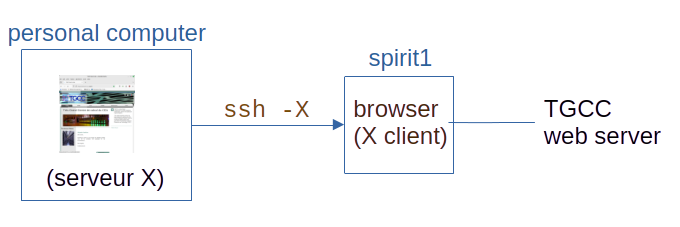
Better, from your computer at home, not declared to TGCC:

(personal computer) $ ssh -N -D 8080 guez@spirit1.ipsl.fr
(if spirit1 is the machine you declared to TGCC). The -D option
enables "dynamic port-forwarding". You also need to modify the network
settings of your browser, on your computer at home:
- Settings > Network Settings
- Select Manual proxy configuration
- In the field SOCKS Host:
::1, port 8080 - Check the box SOCKS v5
- Check the box Proxy DNS when using SOCKS v5